Showing posts with label Google Slides. Show all posts

Friday, September 30, 2022

Binder Project

Every year our 4th graders start the year by creating covers for their binders. And every year those covers get better.

This year's new trick was Word Art in Google Slides. In the past, the kids have just used text boxes to add their name to the cover. Word Art added in the new ability to create outlines and gradient fills in the text, which is way more fun!

My favorite part of this project every year is teaching the kids to crop images into shapes. The "oohs" and "aaahhhhs" reaffirm how magical it is to learn something new! (And yes, those sounds also come from teachers as they learn new tech tricks every time we do this project!


Tuesday, March 16, 2021

Do New Then Review

Or at least that's what I told the third graders during their last tech class.

Everyone, including me always wants to jump to the part that's familiar, the part that we know we can be successful on, the part that's easy because we've already learned it.  This week, after thinking about that, I coined a new phrase - Do new, then review.  I explained to the kids that their first task is to work with the new content, and then, once that's done, they can review prior skills.

Ooops.  Some context might be helpful!

The last lesson in third grade tech was another mash-up for digital citizenship.  We used a little bit of Common Sense Media, and a little bit of Google Slides, and a little bit of my brain.

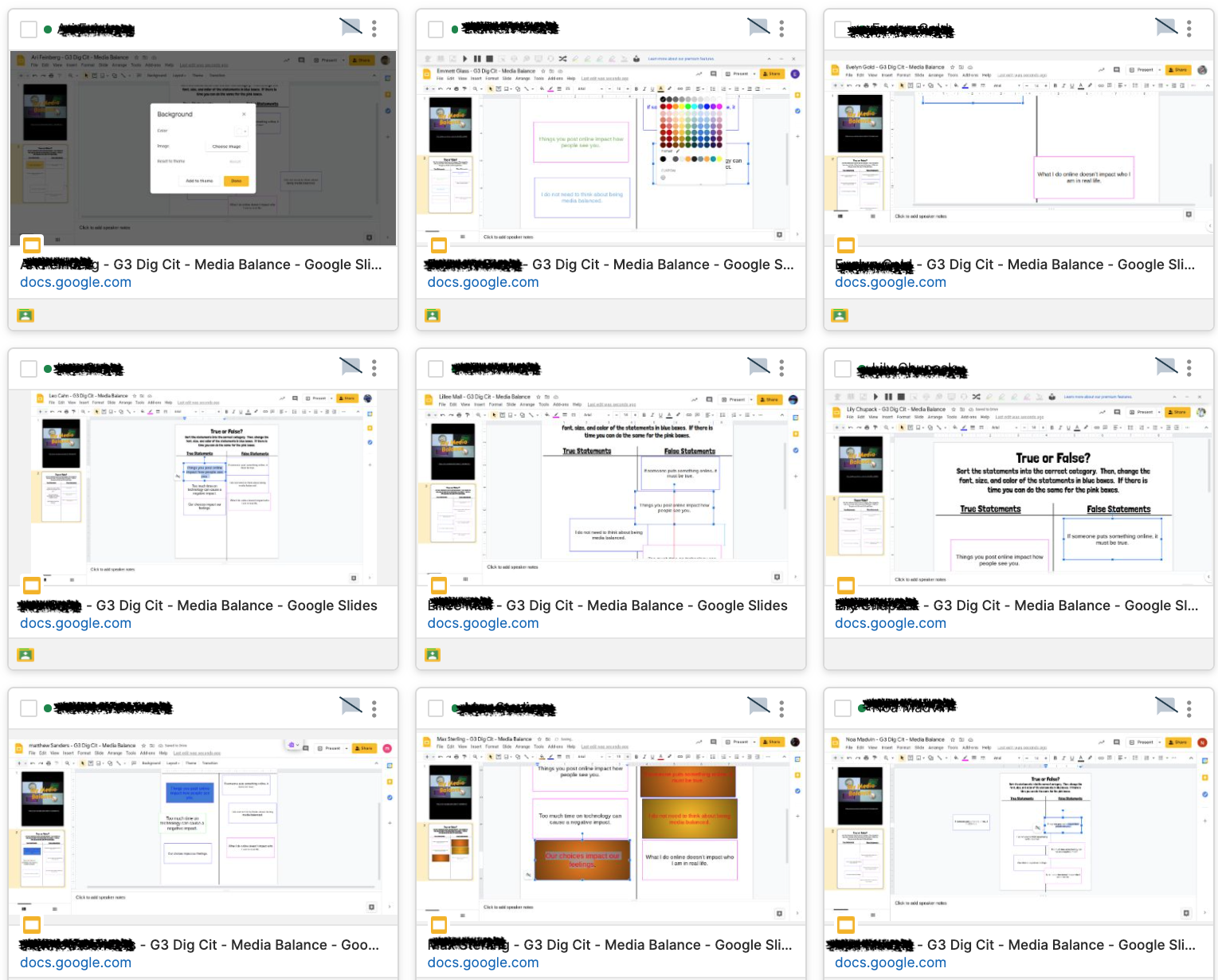
As a class, we watched and discussed the old version of Media Balance by CSM.  I like it particularly because the video uses the term "media" and not "technology" which lends itself to lots of engaging discussion.  After we watched the video, the kids had to go to Google Classroom and open up a Slides assignment where they were asked to sort six statements into true or false.

Once they sorted the statements (the new learning based on the video and discussion) they were then to practice changing fonts, sizes, and colors in the text boxes (review).  Explaining it that way to the kids - that they need to do the new ask first, and then they can review their skills in slides - I got to see a few lightbulbs go off.  They all sorted the statements and then got really creative with their fonts and colors.  Every student finished the activity this time, too... wonder if there is a connection?!

Interested in the lesson?  Send me an email, I'm happy to share!

Monday, February 22, 2021

Take Note!

So much is different this year because of COVID, and yet at the same time, so much is the same.

Take, for instance, book clubs.  Pretty much every grade hosts a variety of book clubs throughout the year.  Right now, fourth grade is in the middle of book clubs on pioneers.  Usually, after each "section" of reading (which the kids determine in their group) the kids gather to take and share notes, and discuss the reading.

Since they can't necessarily do that in person, it's Google to the rescue!

Being fourth graders, they've had more than a year of Google experience, and are quite secure in their basic skills, including working collaboratively on a doc.  I just happened to peek in on a group (thank you GoGuardian!) and saw this example of three members adding their notes at the same time.

When I was in fourth grade, I had a hard time drawing on a poster with three other people, but these kids?  My how times have changed!

Thursday, November 19, 2020

Time to (go) BACK (to) SLIDE

Now that the 3rd graders have had *some* experience with slides, and they loved Shapegrams, we took their slides practice to the next level.

That level is fonts.

Because as much time as I spend playing with fonts?  Introduce fonts to 3rd graders and there goes your time!

Part of the push for for fonts is that the next project the 3rd graders have is publishing a book.  And my favorite part of that project is the font conversation!  The one where we talk about all the fun fonts out there, how you can pick fun fonts for titles, how your writing fonts need to be readable.... all that facets of fonts!

Not only that, but now that the kids learned layering in Shapegrams, they practiced that, too!

We're having fun "sliding" along our technology journey in 3rd grade...!

Wednesday, October 28, 2020

Third Grade Slides!

Once third graders have the basic down - and by basics I mean they can login to their Chromebooks and access Google Drive - we jump right into one of the most used (and sometimes overused?) GSuite tool: Google Slides!

(Don't get me wrong, it is definitely my most used tool, and a favorite.  I mean, I have a few presentations ready to roll on how to make Google Slides work for you.)

The biggest hurdle to pass is that for most of these kiddos, it's the first time they're using a trackpad (or mouse) and not a touchscreen.  Because of that, we start with drag and drop skills.  Now there are lots of templates and activities out there for this, ready to go.  But when you teach in a school that is dual language, you have half the time to accomplish what you need to do.  So you get a little creative.

That meant that this activity accomplished not one, not two, but three tasks: introduction to drag and drop, BrainPop login, noun review.  Check out some of the tasks!

They logged into BrainPop for the first time and watched the assigned movie.
Then they practiced drag-and-drop activities based on the video.
They weren't expected to have mastery of this last one, but it brought up great questions!

Tuesday, October 6, 2020

4th Grade Tech Basics

One of the most used tools in ed tech seems to be Google Slides.  And while I love, there are so many other tools to use for presentations!  But that's a whole different post!

In 3rd grade, we introduce some of the basics of Google Slides.  Adding in text boxes, backgrounds, images, that kind of stuff.  In 4th grade, we dive deeper into all that slides offers.  To do that, the kids create covers for their work binders.  This year, we have one class of 4th graders learning remotely.  Not to worry!  They created custom backgrounds for their Google homepage instead!

The teachers love this project because the kids get to create individualized, personalized binder covers  AND they revisit their basic tech skills from the previous year.  The kids love it because they get to create their own binder covers, they get to play with images online, and it's fun!  I love it because it's a meaningful way to level up their basic Google Slides Skills.

Students insert images and crop them into shapes.  They learn to add borders and fill to text boxes to make titles stand out.  They learn how to layer images on top of shapes to create frames.  They learn how to layer text boxes to make shadowy text.  They review copyright vs common-use images.  There are so many elements of Google Slides that one can keep learning forever! 

Oh, and since they are creating binder covers, they also learn how to change the page orientation of the slide - can't forget that one!


Wednesday, September 16, 2020

The tastiest Pear of the Deck!

To be honest, I am not a fan of pears.  I don't like the texture. 

There is one pear I love, though.

Pear Deck is an absolutely gift of a tool for teachers.  I loved it before this whole remote teaching situation hit.  I love it even more now that "remote" is a regular part of our world.

Wanna know why I love it so?


Because it takes the hard work you've already done in creating Google Slides presentations or even PowerPoint presentations, and in just a few clicks of a button, it takes them from passive learning tools to interactive learning tools.  

Within Pear Deck (and we're talking the free version here) you can add questions to slides, add a draggable, where students take an icon and move it to a specific spot, you can make polls, and more.  The paid version adds in even more tools, including a student-paced mode where you can use Pear Deck as an exit slip or even a homework assignment!

To use Pear Deck in Google Slides, all you need to do is install the Pear Deck add-on.  Then, open your slide presentation the way you normally would, click the Pear Deck add-on, and you have a world of tools at your fingertips!  There are even pre-created slides you can drag right into your presentation!

If you haven't played with Pear Deck yet, you are missing out!  Take the work you've already done and add in a new layer of engagement! This tool is one you should definitely consider adding to your toolbox!