Showing posts with label edtech. Show all posts

Tuesday, February 7, 2023

Tangible Tech

When teachers are planning, I'm the first one to say "If it can be done more effectively while unplugged, do it." We need to face facts - sometimes the "old fashioned" way is better than high tech.

Sometimes, though, you can blend the two. 
Especially with the younger kids.

This post features some of my favorite tangible tech experiences that include hands on components, not just screens.

#1 - Osmo
By far my favorite tech toy for younger students... or really, all age students! Osmo takes the table in which the iPad/tablet is sitting and makes that table interactive. Using a periscope style device, Osmo has more than a dozen different learning games that students can play with, including tangrams, number and letter tiles, maps, coding, and even pizza toppings! I've blogged about Osmo several times but I will never tire of sharing this incredible platform.

#2 - Tiggly
If you are lucky enough to find a Tiggly set, they contain either number rods, vowels, or shapes. The tangible sets are amazing because you stick them right on the tablet screen and the apps "read the screen!" The Tiggly apps do not need the tangible sets to play, instead students use their fingers to engage with the games. My favorite game is Tiggly Chef Subtraction - if the kids need to subtract four, they put four fingertips on the screen. It's kind of hard to explain, but lots of fun to play! Oh, did I mention all the apps are free?!

#3 - Square Panda

In particular, the SquareLand and Phonics Playset. Remember those magnetic letters that were a childhood rite of passage for refrigerators? Well, this playset uses a letter tray where not only are letters recognized, the platform recognizes whether letters are facing the correct direction. It's a fantastic way to explore letters and phonics and basic site words beyond just clicking a screen. Plus, the reading games are adaptable, adjusting to how well the child is doing with the platform.

#4 - Plugo
Plugo has a unique twist on tangible games, with sets that involve STEAM and letters and numbers and puzzles and even a piano! Connect your tablet to Plugo's Gamepad and the sky is the limit. The Gamepad spaces things out and directs kids where to place objects. Whether you're placing the piano or the number spikes, you can clearly see where things go. There are eight different game sets for Plugo, each with it's own apps and storyline. All are engaging, hands on, fun!

There is a whole genre of screen-free tech toys, too, but that is a totally different post!


Friday, March 22, 2019

Fangirl Friday: Tony Vincent

Tony Vincent.

He.  Is. Awesome.

Considering Tony had a 1:1 classroom 18 years ago, way back in 2001, I consider him one of the founders of the #EdTech movement.

A recent Instagram post -
click HERE for the details!
Back in 2001, Palm Pilot's were all the rage, and when they found their way into the education world, Tony was right there to jump in.  And while a lot of details are sketchy, cause it was so long ago, and I had just come out of student teaching, I love that I can say that Tony worked with my old school back in the day, helping to integrate 1:1 with our 4th and 5th grades!

Back then we were using AlphaSmarts and eMates.   Tony worked with the school to help integrate the dana, which was similar to an AlphaSmart but with Palm capabilities.  Tony did workshops with the students and teachers, helping them learn all the tips and tricks and uses for the 1:1 tech.  From there, it seems, things just took off and Tony hasn't looked back!

Tony offers online workshops (I took Classy Graphics a few summers back - it was awesome!) and is very active on Instagram and Twitter.  I highly suggest following him, as you'll get his Tech Tip Tuesday, which has been a great resource for adding little tech-bytes to your classroom!  He has shared so many great tips and tools that are now a regular part of my repertoire.

He is also an infographic master!  His infographics are so clear and easy to follow.  Add to that the webinars, and mini-videos he posts on his social media accounts and you will have access to some awesome bite sized PD!

Swing on over to Learning In Hand with Tony Vincent - you'll be glad you did!

A brief video from a few years
back - chock full of tips!


Friday, March 15, 2019

FanGirl Friday: Alice Keeler

The first time I saw Alice Keeler's quote about three dots and a tiny triangle, about  I'm not gonna lie, I was a bit baffled.  See, I consider Alice to be the Queen of Google.  And she is the Supergirl of Sheets.  Which, continuing on this honesty streak, was my least favorite of the main G-Suite Apps.

Until I found Alice.

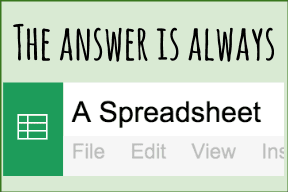
What Alice Keeler taught me about spreadsheets is nothing short of spectacular.  She is totally write, the answer is always a spreadsheet.  Seriously, there really is very little that you can't do in Google Sheets!  From pixel art to digital badges, from traditional spreadsheets to self-grading quizzes, Sheets really is a jack of all trades.

For a very long time, I fangirl'd Alice from afar - following her on Twitter, scouring her website for tech tips and tricks, downloading every app and extension she created.  The tech-tips I shared on Tech-Tip-Tuesday in our weekly staff memo can be credited to Alice's blogs.  In addition to being a top techie, Alice is a mother of five.  Yes, five.  And she teaches.  And is an author.

miGoogle Conference, November 2017
You can probably imagine my reaction when I found out Alice was coming to Michigan, to keynote the miGoogle conference in November 2017.  Yeah.  I was pretty stoked.  Like, bouncing in my chair excited.  If you EVER have a chance to hear Alice speak, take it.  You will leave feeling inspired, motivated, and excited to be a part of the incredible world of educators!


Sunday, March 10, 2019

It's Almost Here! MACUL 2019!

It's almost here!  My favorite conference of the year!  I love being surrounded by all my tech-peeps for two full days of engaging, exciting, and yes, even entertaining technological learning!  This year is gonna be even better, because two days is turning into three!  That's right - I get to spend three glorious days basking in the MACUL magic!  (MACUL = Michigan Association for Computer Users in Learning)

The line up this year is another doozy.  So many sessions I want to attend.  So many speakers I want to hear.   The keynotes are always inspiring, and I'm excited to hear Gerry Brooks.  You gotta check out his YouTube channel for some good laughs and inspiration.

The rest of the featured speakers are part of what is making my MACUL session list so overwhelming!  Kasey Bell is a Google Superstar.  I get a ton of email newsletters, but Richard Byrne's are one of the few I read daily.  Joe Sanfelippo, Adam Bellow, Rushton Hurley, and of course Leslie Fisher, round out the speakers I know.  The rest?  Can't wait to hear from them!

You can imagine how excited I am that I'm going to get a bonus day Wednesday, and will be spending 7 hours soaking up even more MACUL magic!

I'm excited to present again this year, too! A brand new session on one of my favorite tech tools - Osmo.  You won't want to miss that one - you will even have a chance to win an Osmo base for yourself!  The other session I'm doing this year is on Google.  Last year it was standing room only,  this year it's gonna be even better!

Not too late to register, by the way... hence this post!


Tuesday, February 26, 2019

Osmo Words

I love Osmo.  And while I love all the Osmo apps, I find Osmo Words to be the most versatile, the most flexible, and well.... I guess it's probably my favorite!  From letter recognition to geometry vocabulary, Osmo Words can do just about anything.  Whether you're looking for short vowels or site words, the hundreds of albums are a great way to integrate technology into whatever it is you're doing.

Once you've explored the albums created and shared by other people, the next step would be to create your own.  For me, I create using Google Slides.  I'll put a clue of sorts - be it a definition or a sentence, along with a royalty free image on each slide.  Then I download the deck and upload it on myOsmo.  From there, you add a word or words to each image (you can choose to level the images as well, adding multiple words to each), set your cover, and then download to your iPad or Kindle!

However.  My new favorite thing to do with Osmo Words is to have kids create the word decks!  I created a printable template that I used with sixth graders to have them create images to create a deck for learning Hebrew.  On the dashed line near the top of the page, kids wrote the word.  They then illustrated it, keeping their illustration in the black box.

At that point, you have two options - scan or snap.  I scanned each deck into my drive, then cropped each along the large grey box.  (If you don't have a scanner, snap a picture of each card.)  By using the boxes, it keeps everything lined up so that nothing is cut off when you're playing.  The kids loved making the decks and we're really excited to use them with the rest of the school!

Feel free to download the templates - one word per page or two words per page - and have fun creating your own decks!

Wednesday, February 20, 2019

Twitter. Yes, Twitter.

Tweets.  They are NOT just for birds, at least not anymore!  

Source
Like anything new, the Twittosphere can be a bit overwhelming.  I mean, my Twitter account lay dormant for a good two years before I actually posted anything.   Kinda like sitting in the back row of conferences and workshops, which is where I sat my first few years when I attended education trainings.

My Twitter time began as a stalker lurker.  I followed people who were interesting - authors, educators, app creators - and just watched.  I learned a lot while watching.  Apps to try, websites to visit, books to read.  After a while, I started retweeting things that others posted - apps I actually tried, websites I now used in class, and books I read.

From there, conversations began - I started posting questions and requests my students or I had, and looked forward to responses from my newly formed professional learning network of peeps.  We actually did a very cool project where the kids collected data via surveys shared on Twitter, and we used that data for a multitude of things in class!

The next step was joining in on Twitter Chats.  Remember AOL?  Instant messaging?  Instant messaging was a highly motivating factor in my learning to type.  I digress.  A Twitter Chat is kind of like an AIM chatroom.  Full of people sharing a common interest.  Full of wisdom (wanted or not).  Full of energy (my favorite part!)  And yes, they can be fast moving.  But the good news is that you can use the tag form the chat to read the archives so you can find what you might have missed during the chat!

List of chats
Looking for some incredible on-your-own-time professional development?   I highly recommend a Twitter Chat. (Thank you to those who organize the site and host the chats!) There are chat topics that cover everything imaginable in the education world.  Chats for music educators and principals, PBL and Cultures of Thinking, IB and GAFE, and a variety of regional chats hosted across the globe.  Most chats happen in the evening, and are a meaningful way to grow your teaching and learning.  As the chats have a set start and end time, and most even have a topic or agenda with questions for the chat, you've got a decent chance of using the chat toward the on-your-own-time professional development hours most schools now require.

Many thanks to V. Hurst for the Video!
If you'd like to spend a little time diving into how to start on Twitter, and how I found it to be useful in the classroom, please check out my video presentation on Twitter, that I shared with my district a few years back.  I'm happy to answer any questions, too!

Well?  What are you waiting for?!  Go spend some time Twitter stalking learning!


Sunday, February 17, 2019

Plugo Count: Tales of Numero

On to the third installment of the Plugo Saga!  This time, we're visiting Tales of Numero, the second of the three currently available games for Plugo Count.

The concept behind this is that you're following Numero the fox through the forest as she tries to find the ingredients to make the brew of Ulo, some sort of magical potion.  Along the way, she encounters barriers only passable by solving a math problem.  Sometimes the barriers are big ones, because they're guarding ingredients to the brew.  Sometimes the problems are simple, single digit solvers.  Other times encounters involve multi digit math.  

Either way, I think this is an engaging math game for kids.  While the story is a little slow for me (love the ADHD adult brain!) it builds up enough suspense to keep kids engaged.  While it IS obvious they'll be practicing math skills, at least they'll be having fun along the way!

Monday, February 4, 2019

Meet Plugo!

I am a big fan of educational technology toys tools that help engage students in their learning in new and meaningful ways.  The fact that part of my job is to keep up with the latest and greatest in ed tech still kinda shocks me.  I mean, I get paid to play with technology?!  Doesn't get much better than that!

Enter Kickstarter.  One of my favorite resources.  Actually got my first two sets of Osmo from Kickstarter.  So naturally, when I saw another Augmented Reality toy tool on Kickstarter, I had to jump in and give it a go.

Enter Shifu's Plugo.  Purchased an Early Bird special on Kickstarter back in early August 2018.  It finally arrived last week, just in time for some snow day fun!

Check out my first unboxing video, which was my first time playing with Plugo!  It's just about 4 minutes long, and it goes through the unboxing and the set-up/install.

Next up, the apps!  Can't wait!


Sunday, October 1, 2017

Chromebooks: A Cautious Response

Friday morning, our Head of School sent out an article to school leadership, which isn’t out of the ordinary. This article? This article sent my blood boiling. I own the author’s book, Invent to Learn and found it quite useful. But this? To me, it sounds like someone harboring intense frustration with the system. If you ask me, this is a rant about how schools jump on the latest bandwagon to save money, without providing any means to make the best of the tools they are shoving into the hands of teachers and students. And... well... I guess you could call this my rebuttal. 

Stager says that devices should be “portable, reliable, lightweight, affordable, and with good battery life,” while still providing a platform for students to do the unthinkable, unimaginable, and extraordinary things that younger brains are capable of dreaming. However, he then ascertains that Chromebooks are basically simplistic platforms that are far outperformed by cellphones.

This is simply not true. As a purveyor of the finest technologies myself (read: one of everything) Chromebooks are far more capable than many devices in higher price categories, with many benefits. Chromebooks are not “underpowered technology….scraps.” Schools are not settling for less when they purchase them.

(As an aside, I personally like the term device - in this day and age, when so many schools are BYOD, it’s more encompassing to address devices, rather than list “please get out your macbook, Chromebook, dell, iPad, tablet, or whatever tool you are using.”)

CHROMEBOOKS
Chromebooks are not kazoos. They are not phone chargers. If they are being used as such, shame on the school and district for not providing teachers with sufficient training on how to make the most of an amazing device. Sure, you can purchase a laptop for the same price of a Chromebook. And then you add in the cost of the licensing, software, and the management piece, and you’ve now got a $550 laptop instead of a $300 Chromebook. One that’s much more fragile, at that, considering the Chromebooks my school uses are fairly indestructible. Oh, and with all the management, licensing, etc, our Chromebooks are still $300.

We have come so far from the Twenty Things to Do with a Computer from 1971. Sure, we can still do all of those things, and a heck of a lot more. Chromebooks are helping build skills for programming, robotics, software developing, and simulations - a far cry from secretarial tasks.

You want to use a Chromebook for S.T.E.M. experiences? Have you tried Tinkercad for 3D design? What about Design Something? Google’s SketchUp is now Chrome friendly with their new my.SketchUp.com browser run product. Using cadonthecloud.com, Autodesk even works on Chromebooks. Movie editing? I’m a big fan of WeVideo, and after using the free version of WeVideo last year, at $5.00 per user, we upgraded this year, and it doesn’t add much to the cost of the Chromebook (only noting because laptops often come with some sort of video editing software built in.)

We are a dual language school, which some might argue makes Chromebooks even less useful. They’d be wrong. Close to 85% of our curriculum tools are cloud based, and they run on any device. Our Hebrew curriculum? No problem. There are even dozens of apps and extensions focusing on TaNaCh, torah, and Jewish history that are incredibly useful for students and teachers, not to mention the ease of switching between using Hebrew and English with the Google productivity suite.

Robotics? There’s an extension for that. While Lego’s NXT may have been retired, it’s still in use by many schools and requires laptops for use. (I don’t necessarily consider that leftovers.) Using Lego’s EV3, Chromebooks are perfect partners in learning. Robotics may have only been laptop friendly in the past, but not so much lately. Why wait for the maybes of the future when the Chromebooks of today already address many of the questionables?

I’m not knocking laptops. One lives on my desk at school, along with a Chromebook, and an iPad (along with several robots) and I use them all, as well as my beloved MacBook at home.  In our MakerSpace, for example, we do still need laptops for the laser cutter and XCarver, for now. Artistically speaking, there are more apps than one can count on two hands that support different aspects of the art curriculum. I’m of the mindset that we not use technology for technology’s sake. Especially in areas like art, where direct, hands on experience with the medium is best, at least for the students we work with. If the technology isn’t enhancing, or better yet, transforming the learning experience, why are you using it in the first place?

I agree with Stager, many people justify the concept of “using technology” when really, the technology is present in the space, and likely used as a costly replacement for pencil and paper. This applies to all devices, though, not just Chromebooks. Dropping technology into a building, whatever it is, doesn’t automatically mean it’s being used to enhance learning experiences. And in all honesty, doing that so-called “technology drop” is often a source of intense frustration for educators and students alike. Sure, handing an iPad to a 3 year old doesn’t result in them asking for training on how to use it, they jump right in. When it comes to schools, though, where time is a fairly precious commodity, requiring teachers to figure it out on their own is less than effective.

Cost is always a factor in education, unfortunately. And there is always a shortage of funding. That doesn’t make a $35 Raspberry Pi, or a $350 laptop bad, as long as they are truly the most effective learning tools for that school, teacher, or student. There is no one size fits all. Ever. One school might be able to run on Raspberry Pis and second hand monitors, while another runs on Macbooks, and still another is a BYOD building.

All this talk brings me back to what I see as the root of all educational technology integration issues - training. It doesn’t matter the device. It doesn’t matter the software or the app or the extension. It doesn’t matter the operating system or the browser. It doesn’t matter the durability or flexibility of the device. What matters is what happens when the “tools” arrive.

Are schools and districts providing teachers with time to learn how to effectively use the tool? What do you do if you are at a Chromebook school and the internet goes down? Have the devices been set so that students can still work offline? All those software packages - for Chromebooks or laptops - do teachers know how and when to use them? Time to learn how to personalize learning with the tools that have been dropped in their laps? Do teachers know where to find resources to support their lessons?  Have teachers been given time to play with these technological toys so they can discover how to organically integrate them into their classroom experiences?

That’s the problem. Not the device. Any device can be an expensive paperweight or an infallible source for endless creation.

THE CLOUD
Get your head out of the cloud. Seriously. Not free? It sucks? Are we stuck in some alternate universe? We already know that nothing in life is free. Cliche, but true. The cloud is no different. Sure, I have a “free” Dropbox account. And a free gmail account. I also pay for a second Dropbox account. And have an unlimited storage plan through my school Google account. Nothing is free. The cloud, though, has features that far outweigh the costs. When kids can collaborate in real time, wherever they are, it’s a win. In today’s world, when parents are constantly juggling extracurriculars, homework, dinner, and bedtime, the fact that kids don’t need to always be together to complete projects is a bonus.

Does the internet always cooperate? Heck no! The first year at my school, the internet was down more than it was usable, and it was (kind of) infuriating. However, after the investment of time, and a dozen phone calls later, it’s rarely, if ever, down. The bigger problem is those rare moments when Google goes down, and all services are rendered useless. Talk about needing plans b through z!

But guess what? Considering the rarity of that occurrence, Chromebooks score another point. Why? Because prior to Chromebooks, student laptops spent more time at IT than they did in the hands of students. They took massive chunks of time out of class waiting for the computer to start up, a program to open, or a website to load. Despite anti-virus, iBoss, and other monitoring tools, things failed on a regular basis. Maybe we just had lousy laptops. But now? Chromebooks are hearty little devices, and are raring to go from the moment they are opened, maximizing learning time, and nearly eliminating their visits to IT.

GOOGLE
Oh, Google. Not sure why everyone needs to pick on Google. They have their own way of doing things. Yet, somehow, they’ve always managed to cater to the education world. Microsoft is fantastic in it’s own right. Why compare the two? Pick the one that provides what you need and move on. I’m a fan of both, myself, though I use Google nearly exclusively these days. Why? Because having just purchased a new computer, and not having money for Microsoft, it was free, fast, flexible, and fun, and it only continues to get better.

I don’t understand the argument that Google, and the way they choose to run their organization, is a problem. Really, what does Google have to gain while “hooking kids and their teachers” onto the products? If they’re providing a tool that is user-friendly, while not limiting users to old school technological abilities, so what? Google provides, at no cost, to schools, countless tools for effective technology integration. Again, the problem lies not with “The Google” but with the time and training the schools provide to teachers to learn how to use “the device.”

In closing, I leave you with a story. A school in a neighboring district, one that unfortunately has seen better times and is suffering from a plethora of ailments, financials notwithstanding, was given a grant for anything but teacher salaries. The school decided then, that it was going to provide netbooks for every student to use. They purchased the devices, and passed them out to the students. All sounds gravy, right? The problem was, that as a precursor to the Chromebook, netbooks really needed the internet to function. And this school didn’t have a wireless network. So they were stuck with 500 costly paperweights. It’s not always about the cost at all. It’s about the planning, the intention, and the training, all of which can often save money and, the valuable resource of time.

As often heard, technology is a gateway into a future we haven’t imagined. Chromebooks provide the flexibility, durability, and affordability for schools to provide their students with a tool that allows for collaboration, critical thinking, communication, and creativity without sacrificing much, if anything. Some programs are not compatible with Chromebooks. Yet. And if those programs are needed now, chances are highly likely that a half dozen, fairly comparable options exist at little to no cost. We are not “turning back the clock on what we have learned children can do with computers” at all. In fact, we are providing children with greater opportunities to discover what they are capable of doing, when given the tools, the time, and the reinforcement that they are driving their learning journey by putting durable, affordable, and reliable devices into the hands of our most precious commodities.