Showing posts with label Osmo. Show all posts

Tuesday, February 7, 2023

Tangible Tech

When teachers are planning, I'm the first one to say "If it can be done more effectively while unplugged, do it." We need to face facts - sometimes the "old fashioned" way is better than high tech.

Sometimes, though, you can blend the two. 
Especially with the younger kids.

This post features some of my favorite tangible tech experiences that include hands on components, not just screens.

#1 - Osmo
By far my favorite tech toy for younger students... or really, all age students! Osmo takes the table in which the iPad/tablet is sitting and makes that table interactive. Using a periscope style device, Osmo has more than a dozen different learning games that students can play with, including tangrams, number and letter tiles, maps, coding, and even pizza toppings! I've blogged about Osmo several times but I will never tire of sharing this incredible platform.

#2 - Tiggly
If you are lucky enough to find a Tiggly set, they contain either number rods, vowels, or shapes. The tangible sets are amazing because you stick them right on the tablet screen and the apps "read the screen!" The Tiggly apps do not need the tangible sets to play, instead students use their fingers to engage with the games. My favorite game is Tiggly Chef Subtraction - if the kids need to subtract four, they put four fingertips on the screen. It's kind of hard to explain, but lots of fun to play! Oh, did I mention all the apps are free?!

#3 - Square Panda

In particular, the SquareLand and Phonics Playset. Remember those magnetic letters that were a childhood rite of passage for refrigerators? Well, this playset uses a letter tray where not only are letters recognized, the platform recognizes whether letters are facing the correct direction. It's a fantastic way to explore letters and phonics and basic site words beyond just clicking a screen. Plus, the reading games are adaptable, adjusting to how well the child is doing with the platform.

#4 - Plugo
Plugo has a unique twist on tangible games, with sets that involve STEAM and letters and numbers and puzzles and even a piano! Connect your tablet to Plugo's Gamepad and the sky is the limit. The Gamepad spaces things out and directs kids where to place objects. Whether you're placing the piano or the number spikes, you can clearly see where things go. There are eight different game sets for Plugo, each with it's own apps and storyline. All are engaging, hands on, fun!

There is a whole genre of screen-free tech toys, too, but that is a totally different post!


Friday, January 21, 2022

Math Is EVERYwhere!

Earlier this week, a first grader asked why we seem to be playing so many math apps during tech time. I told her that it's because everything, everything, EVERYthing is math! The answer satisfied her curious mind, and so I proceeded to introduce the new math app for the week.

The truth is, math is one of the simplest subjects in which to integrate technology. There is a plethora of math apps solely for fact practice (some rock, some sink) and there are even more apps that work in the problem solving realm. In my head, knowing problem solving is a critical skill, I strive to find engaging ways in which kids can practice.

Some of my favorite math apps are (in no particular order!)

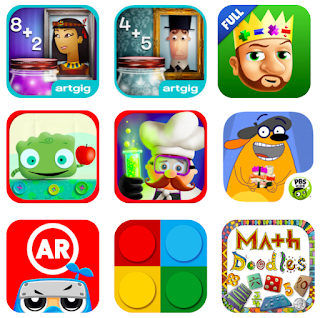
Mystery Math Museum

Mystery Math Town

King of Math and King of Math Jr

Tiggly Addventure and Tiggly Chef Subtraction

Fetch Lunch Rush

Math Ninja AR

Math Brix

Math Doodles

The majority of these are problem solving games that reinforce basic math facts, all with a little twist. Math Ninja AR and Fetch Lunch Rush use physical movement to engage the kids. Mystery Math Museum and Mystery Math Town incorporate a story and (obviously) mystery element. King of Math and King of Math Jr are great for logic exploration at all levels. Math Brix brings in the good ole' fashioned lego blocks to supplement. Math Doodles is a personal favorite, because it takes me back to the fun of a game we used to have in the computer lab back in the day, Math Arena, and because it's doodle style imagery and animation make it memorable for kids exploring concepts like symmetry, angles, and more.

In addition (notice the math pun!), if you have access to an Osmo kit, their math games are unsurpassed - Numbers, Tangrams, and the newer, Math Wizard sets, make screen-time tangible!

As an aside, the game we played in first grade this week was called Math X Creature. To help make direct connections to their math lessons, the kids first completed a practice activity in Seesaw. I created it using screenshots from the game, and then we walked through the slides together to practice. It made the game waaayyyy smoother for the kids to play! I love the game because it is self-correcting, and it challenges the kids to think differently as the work through their math facts.

Yes, most of these are iPad and tablet apps, but some have versions that work on the web, so definitely consider spending some play-time exploring!

//


Friday, October 8, 2021

Cross-Curricular Engagement

Q: What do you get when you cross a computer and a life guard?  

Wait, wrong question. Q: What do you get when you focus on cross-curricular engagement? Lots of powerful learning!

First things first - what is cross curricular engagement? The way I like to define it is when you take content from one curriculum area and address it in an "unrelated" curriculum area. Like when you talk about reading during math class. Or when you ask kids to solve a math problem during tech class and they say "Ms. Diem, I thought we were doing technology, not math!"

True story.

If we want things to stick, it helps to make connections. So when we're asking kids to read a science text, it's helpful to remind them of reading strategies. Or when we're designing a model in art class, it helps to remember how to measure precisely.

And technology is one of those unifying tools that can make cross-curricular engagement super-duper powerful. As a matter of fact, this week, I got to speak with the people at Osmo for an upcoming episode on their podcast! It was so much fun to speak with Michael and Ross about how engagement soars when learning isn't siloed. 

For example, sequencing comes into play in every. single. subject. To introduce sequencing to kids, or to review it, try using something like Osmo's Coding Awbie, or even Osmo Numbers!  Then you can remind students when they're reading, to put things in order like they did with Awbie. Or in science, to follow the steps of the scientific method.  There are so many tools, Osmo and beyond, that weave content together in a way that creates a new level of engagement.

The more we connect learning experiences to other learning experiences, the more memorable, and powerful, they become!


A: A screensaver!

Thursday, April 11, 2019

Masterpiece, Take 2!

Feeding of the fantastical-ness of the 3rd grade Osmo Masterpiece experience last week, this week 2nd grade gave it a go!

The kids are in the midst of an exploration on character traits, so what better way to explore character traits than to examine their own traits?

And what better way to examine your own traits than by drawing a self portrait?And what better way to draw a self portrait than with Osmo Masterpiece?

With what we learned from the 3rd grade experience, we were able to modify so that things were a little smoother.  One thing that made a huge difference was a suggestion from our art teacher - flip the pictures upside down.  That helped the kids focus on tracing the lines, instead of trying to draw perfect eyes (which, by the way, are really challenging to draw!)

The kids, of course, all whined about how terrible their drawings looked in the process.  The finished products, though?  Once outlined with Sharpie and colored with watercolors?  Yeah.  Pretty fantastical.

Now.... which grade will Osmo Masterpiece tackle next?


Thursday, April 4, 2019

It's a Masterpiece!

Seriously!

This week our 3rd graders were readying to trace pictures of the famous people and turn them into masterpieces in art class.  (They are researching different people as part of their biography unit.)  While taping a picture to a window, and taping another piece of paper on top of it is nice... things took a technological twist, instead!

From my perspective, it was one of the coolest experiences this year - seeing all the third graders, so focused, so intent, and so excited about what they accomplished with this new tech toy?  It was awe-inspiring.

If you're not familiar with Osmo Masterpiece, it takes an image you upload (or use one of the many provided images!) and turns it into a line drawing on the screen.  From there, you place a piece of paper in front of the Osmo, and you see your hands tracing the picture on the screen, while the pencil draws the lines on the paper.  Definitely not the greatest description, so check out the intro on Masterpiece for details that make more sense (hey, it's been a long, long week here!)

Because we used pretty big paper (12 x 18, maybe?) and Osmo Masterpiece works best with letter size paper, we experimented with elevating the Osmo base using blocks.  And while I can't exactly explain how it worked, it definitely worked, as the kids pictures filled much of the paper.  Oh, forgot to mention one of the neatest features!  While you're creating your drawing, Osmo is recording the whole process.  At the end, you have a time-lapse video of the process!  So cool!

Now that the kids have finished their drawings, they'll be taking them to Art class to turn them into detailed works of art in time for the 3rd grade Wax Museum in a few weeks!  I had a blast watching them work, and the kids?  They are already asking when they can use Osmo Masterpiece again!

Another win for Osmo!


Tuesday, February 26, 2019

Osmo Words

I love Osmo.  And while I love all the Osmo apps, I find Osmo Words to be the most versatile, the most flexible, and well.... I guess it's probably my favorite!  From letter recognition to geometry vocabulary, Osmo Words can do just about anything.  Whether you're looking for short vowels or site words, the hundreds of albums are a great way to integrate technology into whatever it is you're doing.

Once you've explored the albums created and shared by other people, the next step would be to create your own.  For me, I create using Google Slides.  I'll put a clue of sorts - be it a definition or a sentence, along with a royalty free image on each slide.  Then I download the deck and upload it on myOsmo.  From there, you add a word or words to each image (you can choose to level the images as well, adding multiple words to each), set your cover, and then download to your iPad or Kindle!

However.  My new favorite thing to do with Osmo Words is to have kids create the word decks!  I created a printable template that I used with sixth graders to have them create images to create a deck for learning Hebrew.  On the dashed line near the top of the page, kids wrote the word.  They then illustrated it, keeping their illustration in the black box.

At that point, you have two options - scan or snap.  I scanned each deck into my drive, then cropped each along the large grey box.  (If you don't have a scanner, snap a picture of each card.)  By using the boxes, it keeps everything lined up so that nothing is cut off when you're playing.  The kids loved making the decks and we're really excited to use them with the rest of the school!

Feel free to download the templates - one word per page or two words per page - and have fun creating your own decks!